Showing posts with label Beadtool. Show all posts

3.03.2009

thoughts on designing, using what I call "colouring book technique"

I wanted to share some thoughts on designing with a less than suitable photo.

One of the ways to get the best results, I have found, is to use the photo as a guide.
First of all, note to readers:
I'm a dedicated beadtool user. I have the other programs and have tried working with them, but Beadtool was intuitive and did what I wanted, quickly. I know I sound like I'm trying to sell it - but really I just got so frustrated working with the others, I got to a point where I didn't even try anymore. I just quit! That's pretty bad. Then I discovered Beadtool, and my muse went nuts.

But back to the subject at hand!

Often, when I try to convert a picture into a pattern, it will just look like freckled mush no matter what I do it. I will qualify this by saying I try to keep all of the patterns within certain limitations. I don't like using too many colours, or making the patterns too big, because I know realistically most folks really won't end up using it, if I do.
Here's a sample of basic freckled mush that I got from the colouring page below.
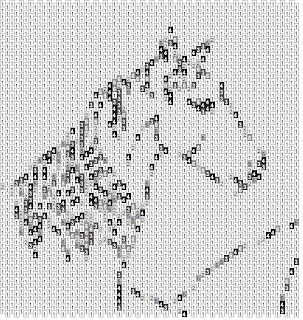
The solution that works best, when all you get is freckled mush, is often to go ahead and open the picture in the bead program.

Decide what size pattern you want and set up the empty bead grid. (I like to try starting off with something in the 3 1/2 inch range with an even number of rows.) Drag the empty grid over the picture.

Use your cursor to grab the picture and expand it until it fits (or shrink it).

Here's where the fun starts. In a picture that has several colours, or shades in it, look for the darkest color in the picture. (I like to sort of squint at it or take my glasses off.) Usually, it will be greyish black, brownish black, or blueish black. Choose the color from your pallette you think will best match, and start to trace over the darkest areas of the image. Think of a coloring book, where you have to sort of squint for the lines.
For the sample I have used an actual coloring book image to really simplify things, and picked my own colours. The key is to learn to look at images as blocks of colour, rather than as an image as a whole.

From here on out, you will be filling more blocks of colour, one at a time. I find that if I alternate between darkest and lightest, I can work my way in to the middle colours.

This may not sound very clear, until you actually open the program up and just start playing. Here's what I got first go round, when I decided to colour in the picture myself, rather than using the assimilate.

It still has one bead space that needs to be filled in - that's the number one thing you have to watch for with this technique - making sure you don't miss filling in any beads. I usually save the pattern as an image and print it out when I am doing a final proof.

I think one of the best ways to get an understanding for this technique is to start with a piece of clip art that is flat blocks of colour, or one of the free colouring pages you can find for kids on the net. (some of the colouring pages are too neat for the kids - I keep them for myself, and use them for embroidery patterns!)

The coloring page below is from http://www.coloring-page.com/page/horse-04.html

the picture is by Nicole Florian.
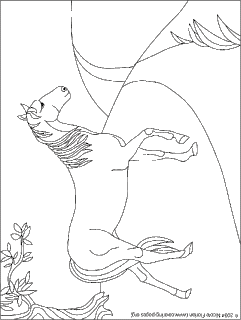
I used this as a sample of what you can find online and what you can do with it.

Please remember: Ms. Frizzle always says, "Get messy and make mistakes!!" and I agree 100% !

6.18.2008

getting up close

One of the things I love to do with photography is to take macro shots - especially of flowers. I also really enjoy taking something recognizable, and seeing what patterns of color I can create by zooming in ridiculously close to the picture when I am creating a design.

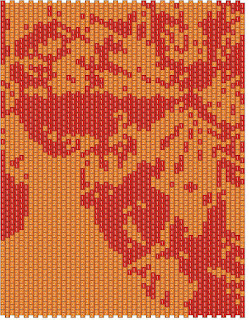
The two pics above are a good example. The pattern of abstract pinks and purples was created by turning the thistle pic on it's side, then enlarging the pic as much as I could. I ended up with some nice repetition and colors and pretty much left it as is. I merged a few of the colors to limit the color pallet and voila ! Instant fun.

5.15.2008

lessons learned from color design experiment

For those who have just purchased a pattern design program, or who have had theirs for a while and feel a bit stuck in a rut design-wise, there is a lot to be learned from experimentation.

One of the things that helps you understand how colors work in a pattern is to see just how far you can limit the number of colours and still get a pattern that is graphically pleasing or recognizable.

I know most people will not consider taking a photo and then trying to create a pattern with only two colors. (Clip art, maybe, but most won't try it with a multi-coloured photo) Try picking a photo with lots of colours, one of two of the colours predominating or brighter than the rest.

Then use the pattern maker with the palette limited to just two colours. Move the photo just a little and try again - did the program pick the same two colours? Can you tell what you are looking at? Interestingly enough - most of the time, the program will give a different set of colours even if you move the photo only a small fraction of an inch. Just as interesting - most of the time you will get a pretty good image of the photo subject. For example here is a pattern that was based on a section of photo with only two colours. I touched it up a small amount, but only enough to make out the main image, then stopped.

Then for instructional purposes (And admittedly frank curiosity) I left the photo and grid exactly as they were but set the pattern maker for three colours. What would the difference be? Interestingly enough, I had to do a bit more color clean up, but a very usuable image.

Here is the four colour:

Having done the three colour bit I then proceeded to do 4 colours, six colours and (because my patience is only but so good) 16 colours. Each time I had to progressively do a bit more colour clean up, but I feel that all five versions have merits on their own that would recommend them for a pattern. The image here is the six colour .

It also gave me a much better understanding of how the program "chooses" colors when left with a full palette to choose from with a limit on how many choices. The original pic was of four butterflies - predominantly orange, red, and yellow. The back ground was a blue-grey colour found on house siding everywhere (It was house siding, so no surprises there.) And last is the sixteen colour version.

What I found interesting was the amount of green that kept popping up, even though at even more than a cursory glance, no green was to be seen by the human eye. Never-the-less, the computer eye obviously saw green in what we would interpret as black or dark brown.

Clearly each of the versions would need more clean up to be usuable, but leaving them in a partial state like this, hopefully will give a good idea of how the different choices you make on colours will affect what you get.

I hope this will encourage you to experiment. I have used this same technique to get a basic outline and then paint in the colours I wanted. I will have another article with samples to show what you can do from this point.

3.03.2008

Of pets and people, part 3

Today my oldest daughter turns thirteen. So I thought it appropriate to use one of the patterns I did this past fall based on her portrait.

The picture was taken with a fill flash to help get rid of strong shadow patterns on her face.

One of the points I have been trying to share is really well illustrated here -- you don't have to use all of the picture to get a great pattern

Here is the first pattern - I focused just on the face - after all, that's what really matters when it's a pic of your kid - none of us really cares about the woods or leaves or trees, when it's really all about the person.

Here I went for a bit more edgy and artsy effect by focusing just on the one eye and cheek, along with her nose. This really works as a pattern not just for those of us who know and love her -- it works as a pattern for making an artistic statement.

One of the best things you can do is take one picture and then see how many different ways you can turn that one picture into a pattern. You may end up erasing twelve of your attempts, but suddenly realizing that try number thirteen is really something - and it was something you normally might not have tried.

Experiment with different areas of the picture.

Experiment with blowing the picture up and shrinking it down (Beadtool lets you just grab the edge and pull it to the size you want - Love it!)

Experiment with small, medium, and large size graphs - look at the different it does and DOESN"T make.

Try different amounts of beads in your pallette. See where you really can tell a difference and not. Just for fun try the pic with a 100 colours. Turn around and do the same pic with 16 colours.

Turn the picture upside down and see what happens.

Try doing the picture in both brick stitch and in peyote - it really can make a difference.

Go out and have a messy bead adventure!

2.21.2008

Trees in morning Sun

Original pic:
One of the things that gives me a lot of joy and relaxation is designing bead paterns for peyote and brick bead weaving. It's always like taking a mini vacation, off in the corner of my bedroom (where the computer sits).
I thought it would be interesting to share some of the processes I go through when working on a bead pattern design.
Just as a note: I love Beadtool!! I design pretty exclusively on it, even though I also own bead creator pro 3. Even though there is a Beadtool 3 available - I have been so pleased with 2, I just haven't felt the urgency to update.
The photo above, is one I took Monday when we had a golden, unseasonable warm moring, with lots of fog and drenched light. I had to go out and take pics!!
This one is from the back patio of part of my back yard. I love living in the country these days!! Last year at this time, that pic would have been of a postage stamp backyard, surrounded by fence and my neighbours house!
The photo here was really all about light and shadow, and I honestly wasn't planning on using it to make a pattern from. There are times I will go out and take photos just to design from,( and I will probably do an entry about that, in the spring.) However, when I saw all that golden light - I just wanted to see how it would look in bead pattern style.
The first pattern below is the basic image from the top of the pic. One of the things I usually do is to then do one with the photo enlarged and pick out different elements from the pic to focus on. This gives many different patterns from the same photo. I can focus on editing those patterns more, after I have decided which image I like best. Quite often it is not the original image but some small corner of it.
I will post more thoughts in part 2 of of this entry. But I hope that this had given an inspiration to look at your original photos in a different way.
Related Posts with Thumbnails