Showing posts with label designing. Show all posts

10.23.2010

Bead Tool

I realized it has been a while since I have mentioned the bead pattern editing software I use.

I definitely want to get the word out there to people about Christopher's Bead Tool.  It has to be my favorite pattern designing software. (And I have tried others!)

Bead Tool was designed with beaders in mind, not computer programmers.  It's very intuitive and easy to use.  I especially like that I can over lay the transparent bead graph over one of my pictures, and "trace" over the images.

For more about this technique, check out my posts!
colouring book technique, post 1
colouring book technique, post 2


I also can't just have a text only post, especially since I just got my new dish today! (Whoo-hoo! - a day late, but worth the wait! Mega bytes here we come!)

I hope you enjoy this blue geometric floral design.  It would make a great winter bracelet design, with it's icy white and chilly blue colour scheme.

5.30.2010

Doodle design

One of the things I have been doing to get out of a creative rut is doodling.  At night I spend 15 or 20 minutes with pen and paper before setting in for the night and it has helped revive my creativity.  

In part, doodling take the pressure of performance away.  It's okay to accept imperfection.    After all, you're just doodling.

I had also started to disconnect from the tangible aspects of art.  I work mostly in digital mediums to the point where I had forgotten the joy of putting pen to paper.

One of the best things to help stir up creativity is to let go and experiment.  To try things that aren't your style.  To try your style in new ways and mediums. 

For anyone who is interested in doodling as an art form, there are some great web sites and blogs.  There is even a kit you can buy from Zentangle, with all of the supplies and how to's.  For me, doodling was a flash back to middle school and filling in the time (as well as the page) while teachers droned on and on. 

5.07.2009

Circles in a Pinstripe World

While doodling this bracelet, I was thinking about one of my husband's old ties he used to wear while he was a medical student years ago. It was bright yellow, matched nothing he owned, and had diagonal pinstripes in blues marching sedately down it.

I think the tie went the way of the world many, many moves ago, but the thought of that tie and its colours made me want to play with something that evoked a similar feeling of colour, with a bit more dynamic feeling in the design.

It's good to try and change things up when designing. You want to give yourself challenges.

Try to make a design with lines (as above), and yet have a sense of movement to the image. Rather than have the eyes follow the same path over and over again, as it did in the original tie, aim for ways to make the eye move up and down, back and forth.

Try to get the eye to be arrested on one particular element, using bold blocks of colour (see the big yellow triangle?) or by introducing something unique to the design, that is unexpected (little circle dudes!).

Look for ordinary items in your home that have patterns and ask yourself how you might use them in your designs. Look for ways to change the ordinary into something new and different.

3.05.2009

colouring book technique, part 2

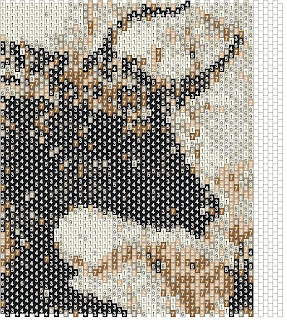
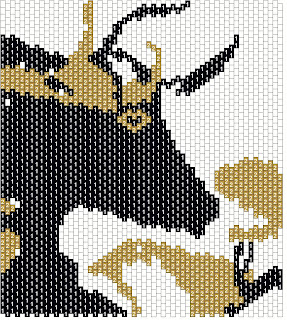
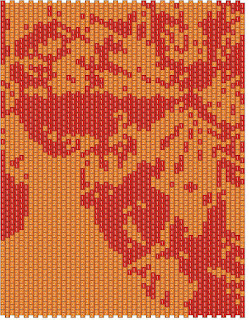
Last time I talked about how some pictures are really cool, but they look like freckled mush when you try to just assimilate them into a pattern. The pattern below is a perfect example. (If it looks familiar - yes, this is from the same image I used to create the pattern I published a couple of entries ago.) Instead of relying on your program to create the pattern, use your cursor to paint in the blocks of colour. With this pattern, I got the blank grid in place, then started with the strong black colour, and focused on getting an outline. You can see that step here:
Once I had the areas of black outlined, I filled them in using the paint bucket "fill function." Here is where the pattern now stands:
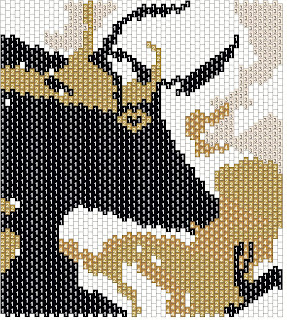
I then started to add the next colour.
And the next. At this point, I have something very similar to the finished piece. Because I ended up redoing the pattern from scratch to illustrate the technique, it isn't exactly the same so far. Still, for something I did quickly, it already has a nice strong image to work with. From this point on, it will need one or two more colours and some clean up, but the pattern is much nicer than anything you would get if you just relied on the program. Even if you were to take the program created pattern and carefully re-edit and clean everything up, it may or may not look as nice. Now that I have been using this technique for some time, I find it is much quicker and easier for me.

3.03.2009

thoughts on designing, using what I call "colouring book technique"

I wanted to share some thoughts on designing with a less than suitable photo.

One of the ways to get the best results, I have found, is to use the photo as a guide.
First of all, note to readers:
I'm a dedicated beadtool user. I have the other programs and have tried working with them, but Beadtool was intuitive and did what I wanted, quickly. I know I sound like I'm trying to sell it - but really I just got so frustrated working with the others, I got to a point where I didn't even try anymore. I just quit! That's pretty bad. Then I discovered Beadtool, and my muse went nuts.

But back to the subject at hand!

Often, when I try to convert a picture into a pattern, it will just look like freckled mush no matter what I do it. I will qualify this by saying I try to keep all of the patterns within certain limitations. I don't like using too many colours, or making the patterns too big, because I know realistically most folks really won't end up using it, if I do.
Here's a sample of basic freckled mush that I got from the colouring page below.
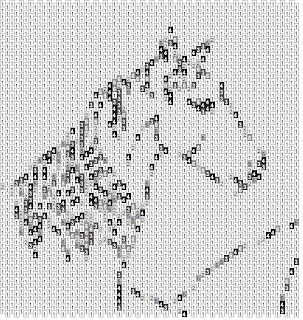
The solution that works best, when all you get is freckled mush, is often to go ahead and open the picture in the bead program.

Decide what size pattern you want and set up the empty bead grid. (I like to try starting off with something in the 3 1/2 inch range with an even number of rows.) Drag the empty grid over the picture.

Use your cursor to grab the picture and expand it until it fits (or shrink it).

Here's where the fun starts. In a picture that has several colours, or shades in it, look for the darkest color in the picture. (I like to sort of squint at it or take my glasses off.) Usually, it will be greyish black, brownish black, or blueish black. Choose the color from your pallette you think will best match, and start to trace over the darkest areas of the image. Think of a coloring book, where you have to sort of squint for the lines.
For the sample I have used an actual coloring book image to really simplify things, and picked my own colours. The key is to learn to look at images as blocks of colour, rather than as an image as a whole.

From here on out, you will be filling more blocks of colour, one at a time. I find that if I alternate between darkest and lightest, I can work my way in to the middle colours.

This may not sound very clear, until you actually open the program up and just start playing. Here's what I got first go round, when I decided to colour in the picture myself, rather than using the assimilate.

It still has one bead space that needs to be filled in - that's the number one thing you have to watch for with this technique - making sure you don't miss filling in any beads. I usually save the pattern as an image and print it out when I am doing a final proof.

I think one of the best ways to get an understanding for this technique is to start with a piece of clip art that is flat blocks of colour, or one of the free colouring pages you can find for kids on the net. (some of the colouring pages are too neat for the kids - I keep them for myself, and use them for embroidery patterns!)

The coloring page below is from http://www.coloring-page.com/page/horse-04.html

the picture is by Nicole Florian.
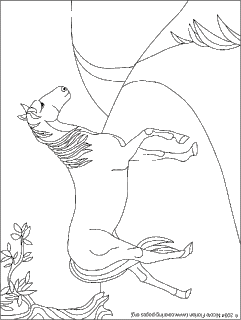
I used this as a sample of what you can find online and what you can do with it.

Please remember: Ms. Frizzle always says, "Get messy and make mistakes!!" and I agree 100% !

5.15.2008

lessons learned from color design experiment

For those who have just purchased a pattern design program, or who have had theirs for a while and feel a bit stuck in a rut design-wise, there is a lot to be learned from experimentation.

One of the things that helps you understand how colors work in a pattern is to see just how far you can limit the number of colours and still get a pattern that is graphically pleasing or recognizable.

I know most people will not consider taking a photo and then trying to create a pattern with only two colors. (Clip art, maybe, but most won't try it with a multi-coloured photo) Try picking a photo with lots of colours, one of two of the colours predominating or brighter than the rest.

Then use the pattern maker with the palette limited to just two colours. Move the photo just a little and try again - did the program pick the same two colours? Can you tell what you are looking at? Interestingly enough - most of the time, the program will give a different set of colours even if you move the photo only a small fraction of an inch. Just as interesting - most of the time you will get a pretty good image of the photo subject. For example here is a pattern that was based on a section of photo with only two colours. I touched it up a small amount, but only enough to make out the main image, then stopped.

Then for instructional purposes (And admittedly frank curiosity) I left the photo and grid exactly as they were but set the pattern maker for three colours. What would the difference be? Interestingly enough, I had to do a bit more color clean up, but a very usuable image.

Here is the four colour:

Having done the three colour bit I then proceeded to do 4 colours, six colours and (because my patience is only but so good) 16 colours. Each time I had to progressively do a bit more colour clean up, but I feel that all five versions have merits on their own that would recommend them for a pattern. The image here is the six colour .

It also gave me a much better understanding of how the program "chooses" colors when left with a full palette to choose from with a limit on how many choices. The original pic was of four butterflies - predominantly orange, red, and yellow. The back ground was a blue-grey colour found on house siding everywhere (It was house siding, so no surprises there.) And last is the sixteen colour version.

What I found interesting was the amount of green that kept popping up, even though at even more than a cursory glance, no green was to be seen by the human eye. Never-the-less, the computer eye obviously saw green in what we would interpret as black or dark brown.

Clearly each of the versions would need more clean up to be usuable, but leaving them in a partial state like this, hopefully will give a good idea of how the different choices you make on colours will affect what you get.

I hope this will encourage you to experiment. I have used this same technique to get a basic outline and then paint in the colours I wanted. I will have another article with samples to show what you can do from this point.

5.07.2008

Surviving Winter Doldrums part 3

Yay!! I just finished the design - "Winter Doldrums" that I posted as my first Blog entry, at the first of year. I know I am pretty slow at finishing things -(Too Many projects all going at once!) But every once in a while, I do finish something!

I especially had fun coming up with a necklace that went with all the bold color, without being too heavy. I ended up with this design, that is a modified RAW.

The main things I had to keep in mind when I designed this was to try and keep the elements balanced between shape and colour. I also wanted something very spring - summery to get me out of my winter funk. Of course it took me until Spring to finish it; but everytime I looked over at my bead board, I had bright cheery beads and shapes to cheer me up.

4.14.2008

Bright petals bracelet cont...

Here is the original pic.
I didn't even rotate the pic for the pattern - I just left it on it's side, and went from there. I didn't save the modified version - I think I had a brain shut down when I was working on this one. But I think it is helpful to see what you can do with a pretty blase pic, if you're willing to experiment and have fun.

4.12.2008

Bright petals bracelet

Happy Spring!! This pattern is based on a picture of white daisies I took by the driveway. I photo shopped the pic some before loading it to the pattern software. Then I used different portions of the picture to create the images of the bracelet. I like using a portin of the pic rather than the whole -- It lets me have more detail in the portion I use, and It focuses on a specific detail in the pic. I think it adds more graphic interest.

If I had used the whole photo as is, It wouldn't have had quite the visual punch that this version has and a lot would have been lost due to size, as well.

Once

I got the images onto the bracelet I cleaned things up a lot by hand. I made the back ground solid and a dep black, to help make the bright colours pop. I chose two of my fav bright colours and used the fill function to paint in the look I wanted. (Two-toned).

One of the important things here to think about is that the photo is just a begining when you are designing. You need to think about which parts of it you can use. you also need to think about which parts are good but can be tweaked by hand to be better.

I will go dig thru my old photos and find the original I used to create this and post it for comparision.

3.03.2008

Of pets and people, part 3

Today my oldest daughter turns thirteen. So I thought it appropriate to use one of the patterns I did this past fall based on her portrait.

The picture was taken with a fill flash to help get rid of strong shadow patterns on her face.

One of the points I have been trying to share is really well illustrated here -- you don't have to use all of the picture to get a great pattern

Here is the first pattern - I focused just on the face - after all, that's what really matters when it's a pic of your kid - none of us really cares about the woods or leaves or trees, when it's really all about the person.

Here I went for a bit more edgy and artsy effect by focusing just on the one eye and cheek, along with her nose. This really works as a pattern not just for those of us who know and love her -- it works as a pattern for making an artistic statement.

One of the best things you can do is take one picture and then see how many different ways you can turn that one picture into a pattern. You may end up erasing twelve of your attempts, but suddenly realizing that try number thirteen is really something - and it was something you normally might not have tried.

Experiment with different areas of the picture.

Experiment with blowing the picture up and shrinking it down (Beadtool lets you just grab the edge and pull it to the size you want - Love it!)

Experiment with small, medium, and large size graphs - look at the different it does and DOESN"T make.

Try different amounts of beads in your pallette. See where you really can tell a difference and not. Just for fun try the pic with a 100 colours. Turn around and do the same pic with 16 colours.

Turn the picture upside down and see what happens.

Try doing the picture in both brick stitch and in peyote - it really can make a difference.

Go out and have a messy bead adventure!

3.02.2008

Of pets and people, part 2

I posted a short bit on 4theluvofbeads@yahoo.com group a while back that I felt was relevant to the articles on converting pictures of pets and people to pattern designs.

This bit focuses on taking a photo with design in mind. There is a bit of repetion of things from the previous posts -- those aspects are just really too important to not mention again.

After about 20-25 colours, you just have too many. Rather than make the pattern bigger - make the image bigger and cropout everything, but the face.

I get decent results with 4.5 by 3.5 inches. You can go bigger and still be within a decent range, but this range works well.

Make sure the photo of the person is well lit - especially on the persons face. If you have a draw program, make a copy of the photo and change it in the draw program, so that all the back ground is one colour --preferably a colour very different from their hair (ie avoid black, if the person has anything but blonde or red hair.) White is always a safe choice -- you can go back and flood fill it later with whatever you want.

If you take the photo of the person with beading it in mind -- make sure they are wearing something solid -- it will read better. Make sure they are well lit on the face. Make sure they aren't blended with the back ground. (green grass usually looks rather nice when the person is wearing a bright primary colour.

Another important part of taking the photo -- take as large a photo size as your camera/memory card will allow. This will give you more pixels per sq. inch and better resolution when you enlarge the photo. This is not only good for making better patterns, but when you take that perfect photo, you want to be able to blow it up and hang it on the living room wall.

If your original photo size is only 4x6, then when it gets enlarged to 8 by 10, you will have blurry areas with a grainy look overall. Treat every photo as if it will be the one you plan on enlarging for your wall, when you take it.

Another technique is to print the photo full size on regular paper(8x10) on a very light setting (draft). You really don't want the colours to be too strong for this technique. Then with a sharpie "trace" color blocks that jump out at you from the print. Rescan this in and use the modified image as your guide when you assimilate it. It will be easier to edit.I find this works especially well when I use the image as a guide and sketch over it in the design program. (Beadtool will allow you to place the grid over the image and "trace" over the image as you go.- This can be really usuful with this technique.)

If you used the assimilate on your program, and need to get rid of the "outlines" Just use the flood fill and the next closest colour sitting next to that section.

Always look at the pattern as a thumb nail image -- this will give you a better feel for how it will read to others viewing the pattern. Looking at the image too close up will just look like a bunch of dots. Give it some space, and the dots organize into a pic.

3.01.2008

Of pets and people, part 1

It seems like everyone who first gets a bead pattern program will take a picture of a fav person and try to turn it into a bead pattern (I sure did!) And more often than not it either looks like an abstract mess, or it ends up being a huge tapestry with 200 colours!

Working with pictures of pets and people can be some of the toughest, but most rewarding results when designing patterns.

I want to share some of the things I have learned, that help get better results.

I have found that the largest I should get is 4 to 5 inches. This keeps the diminsions realistic (I know I'm less likely to finish that huge tapestry I started as my first project EVER, than I will the 3 inch amulet bag. )

The design above is a good example of this principle. It's finished diminsions are just a hair over 3x4 inches.

I did go a bit over on my number of colours rule - this one ran about 22. but several of those colours were in small sections for the nose and eyes - places where a small amount gives a lot of impact. knowing that it would take less than a gram for several of the colours makes it a less expensive project in the long run. It's a delicate balance between getting enough detail and having something become too speckley

I have found that after the numbers get over 16 to twenty colours the difference starts to get less noticeable on the detail. In fact sometimes the detail can become very muddy and speckled if there are too many colours in the pallette. Notice how the background of this graph is a solid green. When the pattern first converted, there were several didfferent greens and it was just too much going on in the graph.

There are several ways to limit how many colours are used.

The most basic is to edit the photograph being used, before you ever open a bead pattern program. To edit photos, I usually use adobe photoshop, but there are many different ones out there including the basic paint program that comes with microsoft.

One of the key things about a photo is to look at what you want to stand out when you convert it into a pattern. Everything else non-essential should be removed or turned a solid colour. Other wise, it will use up a lot of your pallette to creating a background for your image. If there is too much going on in the background, it becomes a very busy pattern.

Of course, there are always going to be exceptions to the rule, but the best results usually come from keeping the image simple.

Another basic way to limit your pallette is to tell the program to use a limited number of colours from the begining. -The draw back is that sometime you will end up the computer substituting colours that aren't accurate. A perfect example of this is a parrot picture I worked with recently.

The pattern was important - it was of a pet who had been in the family for over thirty years and recently passed away. The person I was designing for would have probably been upset, if her pattern had come back looking like someone elses bird, due to colour substitutions.

The first graph has a couple of things about it -- The most prominent is the cheek of the parrot is green. The original picture I was using, however, shows the bird with an orange cheek. I had to get the cheek to show the proper colour without adding too many colours to the final picture.

The first graph also shows a corona around the bird. Flash pictures will often translate this way in bead patterns, and while it can be an interesting design element, for simplicity I felt here it need to be erased. I used the fill function to make it the same as the rest of the background.

By using the eraser funtion (I use Beadtool 2) I cleared out only the area of the cheek, which was mis-coloured. Then I had the program recolour it using only four colours and to not colour any area that was already filled. This allowed me to control the total to only 20 colours.

Because this is a special display piece, I did make it a bit larger - it is 4 x 6.5. However, because I felt she might also wish to have a piece to wear as well, I also did a smaller version which uses only a portion of the image.

2.26.2008

Trees in morning Sun part 2

My original intent was to post a couple more pattern versions I based on the original pic from the previous post. The more I thought about it, the more I thought it would be more helpful to focus more on what did and didn't work on the ones I have shared. The first pattern is fine. It looks pretty much just like the picture. But it lacks excitement. Even though it did what it was supposed to, the light just doesn't translate into anything that really makes the eye go "Wow!" The next two are close-up shots of the trunks. And while they have more graphic appeal, but still lacks something. The one which I felt ended up having the most visual glow of the original pic was the close up of the leaves from the upper left corner. Even though the image ends up looking a bit abstract to the casual eye, this version best captures the kind of golden glow I was going for in the original shot. Because I knew this was a pattern I was doing for myself, I didn't worry about whether someone else would "get it" when looking at the image. Obviously there are times when I am desiging for others when it would have been more important for the image to be highly recognizable as a "something." But for me, this was the image that best captured the feel of that glowing springish morning. The main thing is - not all pictures you use will look like much when you first try to convert them into a pattern. In fact, all of them will need LOTS of work to make them into a good pattern. One of the important things to remember though, is to try looking at the different parts of the picture and to try different areas to focus on, rather than try to get everything. Sometimes just a small part of the whole is more interesting than the entirety.

2.21.2008

Trees in morning Sun

Original pic:
One of the things that gives me a lot of joy and relaxation is designing bead paterns for peyote and brick bead weaving. It's always like taking a mini vacation, off in the corner of my bedroom (where the computer sits).
I thought it would be interesting to share some of the processes I go through when working on a bead pattern design.
Just as a note: I love Beadtool!! I design pretty exclusively on it, even though I also own bead creator pro 3. Even though there is a Beadtool 3 available - I have been so pleased with 2, I just haven't felt the urgency to update.
The photo above, is one I took Monday when we had a golden, unseasonable warm moring, with lots of fog and drenched light. I had to go out and take pics!!
This one is from the back patio of part of my back yard. I love living in the country these days!! Last year at this time, that pic would have been of a postage stamp backyard, surrounded by fence and my neighbours house!
The photo here was really all about light and shadow, and I honestly wasn't planning on using it to make a pattern from. There are times I will go out and take photos just to design from,( and I will probably do an entry about that, in the spring.) However, when I saw all that golden light - I just wanted to see how it would look in bead pattern style.
The first pattern below is the basic image from the top of the pic. One of the things I usually do is to then do one with the photo enlarged and pick out different elements from the pic to focus on. This gives many different patterns from the same photo. I can focus on editing those patterns more, after I have decided which image I like best. Quite often it is not the original image but some small corner of it.
I will post more thoughts in part 2 of of this entry. But I hope that this had given an inspiration to look at your original photos in a different way.
Related Posts with Thumbnails